CSS動畫-Animation講解
CSS動畫(Animation)是CSS3中一個強大的特性,允許您創建復雜的動畫效果而無需使用JavaScript或Flash。動畫( animation)是CSS3中具有顛覆性的特征之ー,可通過設置多個節點來精確控制一個或一組動畫常用來實現復雜的動畫效果。
相比較過渡,動畫可以實現更多變化,更多控制的效果。
一、基本概念
CSS動畫由兩部分組成:
@keyframes規則 - 定義動畫序列
animation屬性 - 將動畫應用到元素并控制其行為
二、@keyframes 規則
@keyframes 用于定義動畫在不同階段的樣式變化。
語法:
@keyframes animation-name {
  from {
    /* 起始狀態 */
  }
  to {
    /* 結束狀態 */
  }
}

/* 或使用百分比 */
@keyframes animation-name {
  0% {
    /* 起始狀態 */
  }
  50% {
    /* 中間狀態 */
  }
  100% {
    /* 結束狀態 */
  }
}
示例:
@keyframes slideIn {
  from {
    transform: translateX(-100%);
    opacity: 0;
  }
  to {
    transform: translateX(0);
    opacity: 1;
  }
}

@keyframes bounce {
  0%, 100% {
    transform: translateY(0);
  }
  50% {
    transform: translateY(-30px);
  }
}
三、Animation 屬性
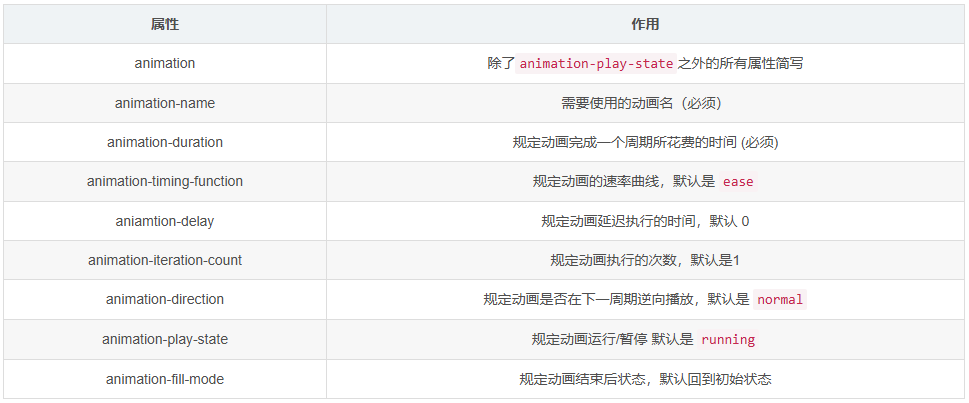
1. animation-name
指定要使用的@keyframes動畫名稱。
.element {
  animation-name: slideIn;
}
2. animation-duration
定義動畫完成一個周期所需的時間。
.element {
  animation-duration: 2s; /* 2秒 */
  animation-duration: 500ms; /* 500毫秒 */
}
3. animation-timing-function
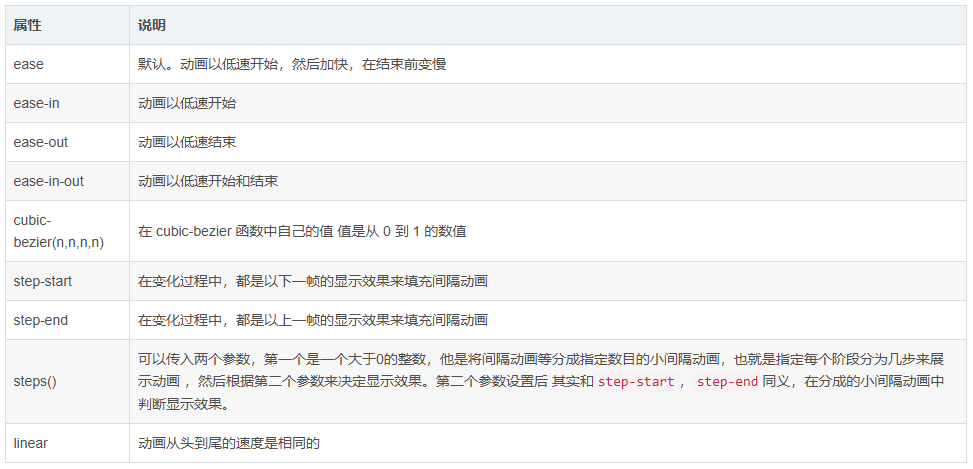
設置動畫的速度曲線,控制動畫的加速/減速方式。
.element {
  /* 預定義值 */
  animation-timing-function: ease; /* 默認,慢-快-慢 */
  animation-timing-function: linear; /* 勻速 */
  animation-timing-function: ease-in; /* 慢開始 */
  animation-timing-function: ease-out; /* 慢結束 */
  animation-timing-function: ease-in-out; /* 慢開始和結束 */
  animation-timing-function: cubic-bezier(0.42, 0, 0.58, 1); /* 自定義貝塞爾曲線 */

  /* 步驟函數 */
  animation-timing-function: steps(4, jump-start);
  animation-timing-function: step-start; /* 等同于 steps(1, jump-start) */
  animation-timing-function: step-end; /* 等同于 steps(1, jump-end) */
}
4. animation-delay
定義動畫開始前的延遲時間。
.element {
  animation-delay: 1s; /* 延遲1秒開始 */
  animation-delay: -500ms; /* 立即開始,但跳過前500ms的動畫 */
}
5. animation-iteration-count
設置動畫重復播放的次數。
.element {
  animation-iteration-count: 1; /* 默認,播放一次 */
  animation-iteration-count: 3; /* 播放三次 */
  animation-iteration-count: infinite; /* 無限循環 */
  animation-iteration-count: 2.5; /* 播放兩次半 */
}
6. animation-direction
定義動畫播放的方向。
.element {
  animation-direction: normal; /* 默認,正向播放 */
  animation-direction: reverse; /* 反向播放 */
  animation-direction: alternate; /* 奇數次正向,偶數次反向 */
  animation-direction: alternate-reverse; /* 奇數次反向,偶數次正向 */
}
7. animation-fill-mode
定義動畫在執行前后如何將樣式應用于元素。
.element {
  animation-fill-mode: none; /* 默認,動畫前后不應用任何樣式 */
  animation-fill-mode: forwards; /* 動畫結束后保持最后一幀的樣式 */
  animation-fill-mode: backwards; /* 動畫開始前應用第一幀的樣式(考慮delay) */
  animation-fill-mode: both; /* 同時應用forwards和backwards */
}
8. animation-play-state
控制動畫的播放狀態。
.element {
  animation-play-state: running; /* 默認,動畫運行 */
  animation-play-state: paused; /* 動畫暫停 */
}

/* 通常與交互結合 */
.element:hover {
  animation-play-state: paused;
}
四、簡寫屬性
animation 簡寫
將所有動畫屬性合并為一個屬性。
語法:
animation: name duration timing-function delay iteration-count direction fill-mode play-state;
示例:
.element {
  /* 完整寫法 */
  animation: slideIn 2s ease-in-out 1s infinite alternate both;

  /* 簡寫(僅必要屬性) */
  animation: slideIn 2s;

  /* 多個動畫 */
  animation:
    slideIn 2s ease-out,
    fadeIn 1.5s ease-in 0.5s;
}
五、實踐示例
示例1:基本淡入效果
@keyframes fadeIn {
  from { opacity: 0; }
  to { opacity: 1; }
}

.fade-in-element {
  animation: fadeIn 1s ease-in-out;
}
示例2:彈跳球效果
@keyframes bounce {
  0% {
    transform: translateY(0);
    animation-timing-function: ease-out;
  }
  50% {
    transform: translateY(-100px);
    animation-timing-function: ease-in;
  }
  100% {
    transform: translateY(0);
    animation-timing-function: ease-out;
  }
}

.ball {
  width: 50px;
  height: 50px;
  border-radius: 50%;
  background-color: red;
  animation: bounce 1.5s infinite;
}
示例3:加載旋轉器
@keyframes spin {
  0% { transform: rotate(0deg); }
  100% { transform: rotate(360deg); }
}

.spinner {
  width: 40px;
  height: 40px;
  border: 4px solid #f3f3f3;
  border-top: 4px solid #3498db;
  border-radius: 50%;
  animation: spin 1s linear infinite;
}
示例4:打字機效果
@keyframes typing {
  from { width: 0; }
  to { width: 100%; }
}

@keyframes blink {
  0%, 100% { border-color: transparent; }
  50% { border-color: black; }
}

.typewriter {
  overflow: hidden;
  white-space: nowrap;
  border-right: 3px solid;
  animation:
    typing 3.5s steps(40, end),
    blink 0.75s step-end infinite;
}
六、性能優化建議
1:優先使用 transform 和 opacity
這些屬性可以由GPU加速,不會觸發重排
/* 好 - GPU加速 */
transform: translateX(100px);
opacity: 0.5;

/* 不好 - 可能觸發重排 */
left: 100px;
width: 200px;
2:使用 will-change 屬性
.animated-element {
  will-change: transform, opacity;
}
3:減少動畫數量:避免同時過多元素動畫
4:使用合適的 timing-function
考慮使用 cubic-bezier() 創建更自然的動畫
七、瀏覽器兼容性
CSS動畫在現代瀏覽器中得到廣泛支持:
Chrome 43+ (完全支持)
Firefox 16+ (完全支持)
Safari 9+ (完全支持)
Edge 12+ (完全支持)
Opera 30+ (完全支持)
對于舊版瀏覽器,可能需要添加前綴:
@-webkit-keyframes fadeIn { /* WebKit/Blink */ }
@-moz-keyframes fadeIn { /* Firefox */ }
@-o-keyframes fadeIn { /* Opera */ }
@keyframes fadeIn { /* 標準 */ }

.element {
  -webkit-animation: fadeIn 2s;
  -moz-animation: fadeIn 2s;
  -o-animation: fadeIn 2s;
  animation: fadeIn 2s;
}
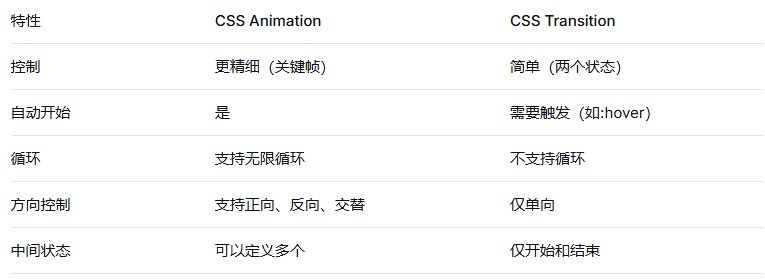
八、與 Transition 的區別
九、實用技巧
1. 暫停并恢復動畫
.animated {
  animation: pulse 2s infinite;
}

.animated.paused {
  animation-play-state: paused;
}
2. 檢測動畫結束
const element = document.querySelector('.animated');
element.addEventListener('animationend', () => {
  console.log('動畫結束');
});
3. 創建進度條
@keyframes progress {
  from { width: 0%; }
  to { width: 100%; }
}

.progress-bar {
  animation: progress 5s linear forwards;
}
總結
CSS動畫提供了一種強大而靈活的方式來創建引人注目的視覺效果。通過合理使用@keyframes和各種動畫屬性,您可以創建從簡單到復雜的各種動畫效果,而無需編寫JavaScript代碼。記住要關注性能優化,特別是在移動設備上,并確保動畫增強用戶體驗而不是分散注意力。
上一篇:提高網站內容安全性的措施有哪些?
下一篇:網站設計:首頁要不要“塞滿”?